
Uncategorized
Problems with TurboCAD
In very rare occasions TurboCAD misbehaves. The standard cure for this is a simple Default.
Tools menu – work space – customize – options tab – click “Default” This fixes the problem 99% of the time.
In very rare circumstances, the configuration INI files may become corrupted causing loss of functionality, and no amount of customizing will restore them. To fix this problem, the standard procedure is to force TurboCAD to reconstruct the “Built-in” folder by deleting it. This will restore most TurboCAD settings to those found in a brand new installation.
Close TurboCAD
Window Key + R
type %APPDATA%
click OK and navigate the “IMSIDesign” folder
drill down until you get to the “Profiles” folder, similar to this path,
C:\Users\username\AppData\Roaming\IMSIDesign\TurboCAD 2021\Platinum (or Pro, Deluxe, Designer) x64\Profiles
open the “Profiles” folder to see the “Built-in” folder
Delete the “Built-in” folder
Restart TurboCAD
Uncategorized
AVG anti-virus
Occasionally I have a customer who has trouble loading TC when they have AVG security on their computer. The advice to overcome this from a trusted technician at the publisher’s is below.
The customer should be able to disable AVG temporarily during the install of TurboCAD.
Uninstall – reboot – disable AVG – reinstall
Usually works for my customers
Odd that some people use a third party AV when Windows 10 has a VERY GOOD built in anti-virus.
George McNamara
Uncategorized
Importing Fonts
Notes from a trusted customer who at first tried unsuccessfully to import fonts into TurboCAD.
I searched for a font converter, thinking I would convert to SHX files. The answer is my missing fonts were OTF type. They install in Windows 10 but TurboCAD does not recognise them. TurboCAD likes TTF fonts. Convertio does the trick, it converts files. My OTFs are now TTFs, and TurboCAD is quite happy.
See Link https://convertio.co/font-converter/
It says ‘FREE’, but the limit is 10 converts per day, then it tries to smack you with buying a licence.
Paul
Uncategorized
Upgrading from within 2021
INSTRUCTIONS for those upgrading their TC from say Designer to Deluxe, or any version to Platinum from within 2021. Below are the instructions from the publisher which I have tried and worked for me.
These steps “should” work but success seems about 50/50
Go to the Help menu – Update TurboCAD edition
If a web page pops up, close it and look for a dialog box
You might have to minimize TC to see the dialog box
Input the new license key there
Uncategorized
CAD Design Projects
At the London Model Engineering Exhibition, I met an engineer keen on taking on new 3D CAD projects.
His CV describes a degree level educated mechanical engineer, with extensive experience in the building of prototypes and electrical systems using several different CAD systems.
His contact details are below and I’m sure he would welcome enquires and be happy to forward his CV.
Tim McDermott
| [email protected] |
Uncategorized
Copy in Place
Copy In Place
This can be a useful tool that is not where you’d expect to find it. Below is where you can find it in Platinum versions 2018 and 2019 as well as Deluxe versions.
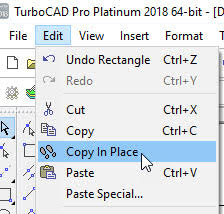
In Platinum versions it can also be found under SDK – Selection.
Select the object to copy first, then the tool.
Paul
Uncategorized
Don Cheke’s TurboCAD Tutorials
Another new tutorial from Don Cheke. The link below has an introduction to the tutorial.
https://www.youtube.com/watch?time_continue=5&v=bmjspUK-APY
You can but the tutorial at Don’s site at the link below.

All Don’s tutorials are excellent.
Paul
Uncategorized
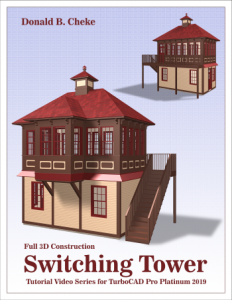
Switching Tower Tutorial Video Series
Switching Tower Tutorial Video Series
Don Cheke has a new Architectural tutorial on the market. Don’s tutorials are excellent, he’s the man who taught me just about all I know about TurboCAD. Below I have copied Don’s description of his new tutorial. You can find tutorials for all sorts of projects on his site.
Within the tutorial the reader will be lead through each keystroke to produce all the switching tower components utilizing many of the TurboCAD Architectural tools. The reader will also learn how to insert standard lighting, will learn how to utilize render scene luminance and establish a render scene environment. The reader will learn how to render their model and save it in a high resolution image format.
Don’s Site
http://www.textualcreations.ca/
Uncategorized
Upgrading
Upgrading from a Trial version
If you have previously installed a different, or trial version of the TurboCAD 2018 program you may then need to do the following to completely delete that version before installing.
- Exit TurboCAD and uninstall the program via the control panel
- Download the following zip file and run its contents to clear the other trial license …
http://downloads.imsidesign.com/TC2018/deactivate_TC2018_x64.zip
Be sure to click the “Clear License” option.
You can then reinstall
Uncategorized
New Keyboard Commands
Another a new development in soon to come v 2018. Extra keyboard commands under TOOLS – Customise – Keyboard.
It obviously depends on what tools you use a lot and find most useful, but here’s one example, Zoom Extends. In previous versions, you were able to assign a key, say Z to zoom out incrementally, but not to extends and as you could zoon out simply by rolling your wheel mouse there was little point. You could click on the Zoom Extends icon at the top of your screen, or there is the little trick of tapping your wheel that normally works.
However in 2018 you can assign a single key to Zoom Extend, I tried it with Z and it worked a treat. Z did have a different function by default, but not one that I ever used.
Also good to know that the Default button puts them all back to what they were doing before you started mucking about with them.
Paul
FREE Support with Every Product Purchase
 Buy from this site and I'll provide unlimited telephone and email support!
Need a website?

PaulTheCAD (and my other sites) was built and is maintained by Tim at Clever Digital Stuff. I've been working with Tim for over 10 years, he really knows his stuff. If you need a site or just some advice about anything digital, take a look at cleverdigitalstuff.com and give Tim a call - Tell him I sent you and you'll get a discount.