
Uncategorized
Problems with TurboCAD
In very rare occasions TurboCAD misbehaves. The standard cure for this is a simple Default.
Tools menu – work space – customize – options tab – click “Default” This fixes the problem 99% of the time.
In very rare circumstances, the configuration INI files may become corrupted causing loss of functionality, and no amount of customizing will restore them. To fix this problem, the standard procedure is to force TurboCAD to reconstruct the “Built-in” folder by deleting it. This will restore most TurboCAD settings to those found in a brand new installation.
Close TurboCAD
Window Key + R
type %APPDATA%
click OK and navigate the “IMSIDesign” folder
drill down until you get to the “Profiles” folder, similar to this path,
C:\Users\username\AppData\Roaming\IMSIDesign\TurboCAD 2021\Platinum (or Pro, Deluxe, Designer) x64\Profiles
open the “Profiles” folder to see the “Built-in” folder
Delete the “Built-in” folder
Restart TurboCAD
Uncategorized
Copy in Place
Copy In Place
This can be a useful tool that is not where you’d expect to find it. Below is where you can find it in Platinum versions 2018 and 2019 as well as Deluxe versions.
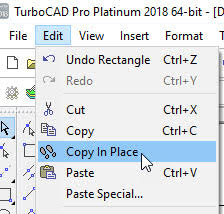
In Platinum versions it can also be found under SDK – Selection.
Select the object to copy first, then the tool.
Paul
Uncategorized
Switching Tower Tutorial Video Series
Switching Tower Tutorial Video Series
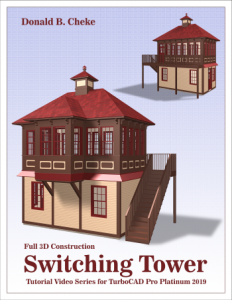
Don Cheke has a new Architectural tutorial on the market. Don’s tutorials are excellent, he’s the man who taught me just about all I know about TurboCAD. Below I have copied Don’s description of his new tutorial. You can find tutorials for all sorts of projects on his site.
Within the tutorial the reader will be lead through each keystroke to produce all the switching tower components utilizing many of the TurboCAD Architectural tools. The reader will also learn how to insert standard lighting, will learn how to utilize render scene luminance and establish a render scene environment. The reader will learn how to render their model and save it in a high resolution image format.
Don’s Site
http://www.textualcreations.ca/
Uncategorized
Rendering
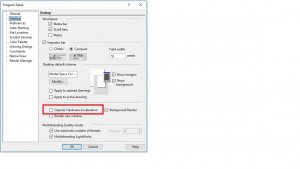
If you have a problem with rendering – For some, when moving objects around and swapping between wireframe and rendered views, TurboCAD has been crashing. This is solved by ensuring that Open GL Hardware Acceleration is turned off, as below.
Uncategorized
AutoCAD Training
If you need help with AutoCAD on a personal level, rather than organised classes, then I have recently met a chap who used AutoCAD in his work and is now semi-retired and teaches AutoCAD. He might even be persuaded to take on projects.
His name is Clive Osmond and can be contacted by email at the address below.
Uncategorized
TurboCAD Pro Platinum 2017
TurboCAD 2017 is just around the corner.
Below is a film of one of the new tools that I think looks very useful.
To pre-order call me on 077 24 88 24 03.
Uncategorized
Unexpected Problems
Occasionally I’ll get a call from someone saying that their keyboard shortcuts have stooped working, or perhaps the delete key has ceased working. The quick fix for this is often to reset the defaults. So you go to TOOLS – Customize and in the General Section hit the Default button. Moat of the time this solves the problem, the downside is that it resetts all defaults, so if you screen is in any way customized, you will have to do this again.
However, if this does not work, or there are other problems with functionality, you would need to try removing the contents of the built-in folder as your next step in troubleshooting anything strange or unheard of.
Reported symptoms range from Unhandled Exceptions (UEs) to tools completely missing from the program’s commands list, as well as the loss of keyboard shortcuts and other default keyboard commands. Another commonly reported symptom is one or more tools will suddenly stop working as designed. In many cases deleting the contents of the built-in folder specific to the product will solve the problem.
Below shows you where you will find the Built In Folder for you version.
C:\Users\<username>\AppData\Roaming\IMSIDesign\TurboCAD 2016\Professional x64\Profiles\Built-in
C:\Users\<username>\AppData\Roaming\IMSIDesign\TurboCAD 2016\Professional\Profiles\Built-In
C:\Users\<username>\AppData\Roaming\IMSIDesign\TurboCAD 2016\Deluxe x64\Profiles\Built-In
C:\Users\<username>\AppData\Roaming\IMSIDesign\TurboCAD 2016\Deluxe\Profiles\Built-In
C:\Users\<username>\AppData\Roaming\IMSIDesign\TurboCAD 2016\Designer x64\Profiles\Built-In
C:\Users\<username>\AppData\Roaming\IMSIDesign\TurboCAD 2016\Designer\Profiles\Built-In
Paul
Uncategorized
Don’s Textual Creations
Don Cheke is a world authority on TurboCAD, he was a huge help when I was learning TurboCAD especially when it came to 3D, which was a complete mystery until I spent a few days with Don. (He has a lot of patience).
Don’s tutorials are extremely good, they take you through exercises very slowly and carefully leading you by the hand and never presuming prior knowledge.
Also on Don’s site you will find quick tips and a gallery that shows you just what can be achieved with TurboCAD.
Have a look – you will certainly learn something.
http://www.textualcreations.ca/
Paul
Uncategorized
More notes on Windows 10
Windows 10 continues to cause some of my customer’s problems. My technicians assure me that the problem is not Windows 10, but instead the Drivers. In language that we can all understand – there is the software, the operating system, and between these two is the drivers, that’s the bit that translates, so that the computer understands the software.
What is sometimes happening is that people are upgrading the operating system, but not the drivers, so there’s a problem in understanding for the computer. If you buy a new computer with windows 10 already on, then you are fine, but if you upgrade, then you need to ensure that you have the correct Drivers.
Below is advice from an expert technician that I think will help.
Set your computer to receive automatically driver updates for newly connected devices – explained how in this article here, then run Windows Update (www.update.microsoft.com) and apply all Important and optional updates (excluding language packs) available for your computer’s system. When installation is completed, shut down (do not restart it) the computer. Upon booting up check for Windows Updates again, apply if any. Also make sure antivirus program database is updated to its latest release. Then install the 32-bit version of TurboCAD because the computer shares RAM for video resources.
Regardless of which version of TurboCAD is installed (32 or 64) on 64-bit system type, at the moment all latest drivers should be present on the system. I suggest the 32-bit version most of the time because of the way the 3D environment is rendered. It’s lighter for systems that use APU and CPU for video rendering. If there is dedicated video card present on 64 bit system then TurboCAD 64 bit would perform better in 3D view.
Paul
FREE Support with Every Product Purchase
 Buy from this site and I'll provide unlimited telephone and email support!
Need a website?

PaulTheCAD (and my other sites) was built and is maintained by Tim at Clever Digital Stuff. I've been working with Tim for over 10 years, he really knows his stuff. If you need a site or just some advice about anything digital, take a look at cleverdigitalstuff.com and give Tim a call - Tell him I sent you and you'll get a discount.